
Compute Shaders
Introduction
At some point you may run into situations where the CPU simply isn’t fast enough to handle the amount of computation your application needs. Tasks that involve many similar operations, such as image processing, simulations, or procedural generation, can quickly become expensive when executed on the CPU. This is where the GPU can help. Unlike the CPU, which is optimized for sequential work, the GPU is designed to perform thousands of operations in parallel. For workloads that can be split into many small, independent tasks, this can lead to significant performance improvements.
Compute shaders allow us to take advantage of this parallel processing power. In Unity, compute shaders are written in HLSL inside .compute files and allow us to run custom programs directly on the GPU.
In this post, I will show you how to create a simple compute shader in Unity that generates an image on the GPU. The shader will write its output into a RenderTexture, which we will then display in the UI. We will walk through the steps required to create the compute shader, connect it to a C# script, and execute it from within Unity. By the end, you will have a small but complete example of a compute shader running in your project.
Project Setup
First, create the compute shader file. In the Project window, right-click and select Create → Shader → Compute Shader. Unity will create a new .compute file containing some example code. This file will hold the code that later runs on the GPU.
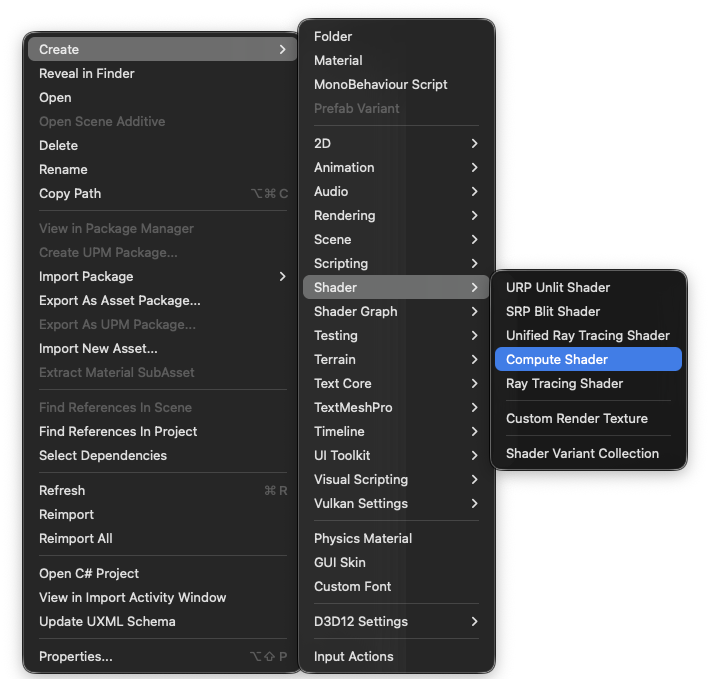
The generate file should look like this.
// Each #kernel tells which function to compile; you can have many kernels
#pragma kernel CSMain

RWTexture2D<float4> Result;

[numthreads(8,8,1)]
void CSMain (uint3 id : SV_DispatchThreadID)
{
   // TODO: insert actual code here!

   Result[id.xy] = float4(id.x & id.y, (id.x & 15)/15.0, (id.y & 15)/15.0, 0.0);
}Code-Sprache: PHP (php)
For now we are not interested in using this pre-generated shader. Instead
private void SetupRenderTexture()
{
	_targetTexture = new RenderTexture(_resolution.x, _resolution.y, 0, RenderTextureFormat.ARGB32);
	_targetTexture.filterMode = FilterMode.Point;
	_targetTexture.enableRandomWrite = true;
        _targetTexture.Create();
}Code-Sprache: JavaScript (javascript)
.. Depending on your projects color settings, the output should look either like this (linear) or like this (gamma).
Next, we need a script that will control the compute shader from the CPU. Create a new C# script called SimpleCSController. This script will be responsible for preparing the texture the shader writes to, configuring the shader, and finally dispatching it so that the GPU executes it.
Finally, we need a way to display the result. The compute shader will generate an image, so we need a UI element that can show a texture. Add a Canvas to your scene and create a RawImage as a child of it. We use a RawImage instead of a regular Image because we want to display a texture rather than a sprite.
Leave the Texture field of the RawImage empty for now. We will assign the texture from our controller script later once the compute shader has produced its output.
When you open the shader file (I called mine SimpleComputeShader.compute) in your IDE, you’ll find that Unity has generated some code for us. It should look somewhat like this:
In the following I will show you how to render this shader to your screen und make you understand how it works.
using UnityEngine;

public class SimpleCSController : MonoBehaviour
{

   [SerializeField] private Material _material;
   [SerializeField] private ComputeShader _computeShader;
   [SerializeField] private Vector2Int _resolution;

   private RenderTexture _targetTexture;

   private int _kernel;

   private void Awake()
   {
       SetupRenderTexture();
       SetupShader();
   }

   private void SetupRenderTexture()
   {
       _targetTexture = new RenderTexture(_resolution.x, _resolution.y, 0, RenderTextureFormat.ARGB32);
       _targetTexture.enableRandomWrite = true;
       _targetTexture.Create();


       _material.mainTexture = _targetTexture;
   }

   private void SetupShader()
   {
       _kernel = _computeShader.FindKernel("CSMain");


       _computeShader.SetTexture(_kernel, "Result", _targetTexture);
   }

   private void DispatchShader()
   {
       // Must be equivalent to the what's written in the compute shader in: [numthreads(8,8,1)]
       int threadGroupSizeX = 8;
       int threadGroupSizeY = 8;


       int threadGroupsX = Mathf.CeilToInt(_resolution.x / threadGroupSizeX);
       int threadGroupsY = Mathf.CeilToInt(_resolution.y / threadGroupSizeY);
       int threadGroupsZ = 1;


       _computeShader.Dispatch(_kernel, threadGroupsX, threadGroupsY, threadGroupsZ);
   }

   private void Start()
   {
       DispatchShader();
   }
}Code-Sprache: C# (cs)
private void SetupRenderTexture()
{
_targetTexture = new RenderTexture(_resolution.x, _resolution.y, 0, RenderTextureFormat.ARGB32);
_targetTexture.filterMode = FilterMode.Point;
_targetTexture.enableRandomWrite = true;
_targetTexture.Create();
}Code-Sprache: C# (cs)style {
style: 20;
}Code-Sprache: CSS (css)